TL;DR
- Over 4,600 website accessibility lawsuits were filed in the U.S. in 2023 — and the number is growing every year.
- “ADA-compliant” means your website can be used by people with disabilities — including people who can’t see images, can’t use a mouse, or need high contrast to read text.
- There’s no official government checklist for private-sector websites yet, but courts consistently use the WCAG standard (Web Content Accessibility Guidelines) as the benchmark.
- Most accessibility problems are simple to fix — missing text descriptions for images, poor color contrast, and forms that screen readers can’t read. A developer who builds accessibility in from the start prevents all of these.
The Letter You Never Expected
You get a letter from a law firm. It says your website violates the Americans with Disabilities Act. It lists specific problems — images without text descriptions, forms that can’t be navigated by keyboard. It asks for a settlement. This is happening to thousands of people every year, and most had no idea their website was non-compliant.
What “ADA-Compliant” Actually Means for a Website
The Americans with Disabilities Act (ADA) was passed in 1990. It requires businesses to be accessible to people with disabilities. Originally, this meant physical things — ramps, wider doorways, accessible bathrooms.
Courts have ruled that the ADA also applies to websites. If someone with a disability can’t use your website, you may be violating the ADA — even if you didn’t know it.
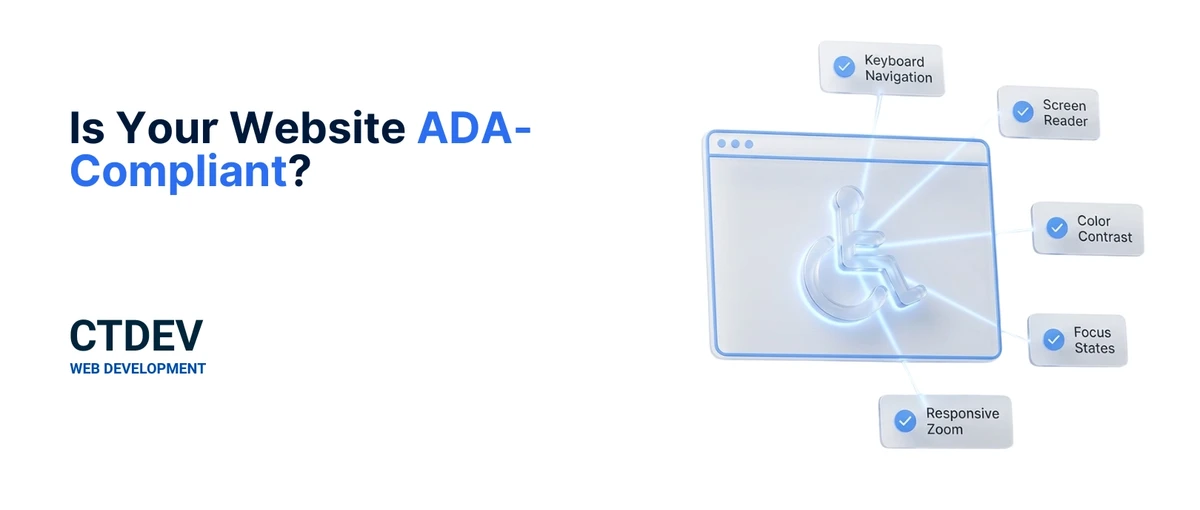
In practice, “ADA-compliant” means following a set of guidelines called WCAG (Web Content Accessibility Guidelines). These are published by an international standards organization, not the U.S. government — but U.S. courts consistently use WCAG as the benchmark when evaluating accessibility. The guidelines cover everything from text descriptions for images to color contrast to keyboard navigation.
Related: Why Your Website Doesn’t Need to Be Complicated — simpler, well-built sites are easier to make accessible.
The Lawsuit Reality
Over 4,600 website accessibility lawsuits were filed in federal court in 2023. The number has been growing year over year.
Who gets targeted: Businesses of all sizes — but small and medium ones are common targets because they’re less likely to have legal teams and more likely to settle quickly.
What happens: Typically, a law firm sends a demand letter citing specific accessibility failures. You can either pay a settlement (often $5,000–$25,000) or fight it in court (which often costs more than settling, even if you win).
But here’s the honest truth: Most people will NOT be sued. The risk is real and growing, but it’s not a guarantee. The bigger practical issue is losing visitors — over 1 in 4 U.S. adults has some form of disability. If your site is hard for them to use, they leave and go to a competitor whose site works.
The April 2026 Deadline — What It Actually Means
In April 2024, the Department of Justice issued a rule requiring state and local governments to make their websites accessible under WCAG 2.1 Level AA by April 2026.
Important distinction: This rule applies to government websites (Title II of the ADA), NOT to private businesses (Title III). There is currently no specific federal deadline for private-sector websites.
However, the DOJ rule signals the direction. Courts are increasingly using WCAG as the standard for private businesses too, even without a specific federal deadline. The April 2026 rule makes WCAG the official government benchmark — making it harder to argue you didn’t know what standard to follow.
What this means for you: Even though the 2026 deadline technically doesn’t apply to private businesses, the practical effect is that WCAG compliance is becoming the expected standard across all websites. Getting ahead of it now is far cheaper than responding to a lawsuit later.
The 5 Most Common Accessibility Problems
1. Images without text descriptions
What it is: Every image on your website should have a short text description (called “alt text”) that a screen reader — software that reads web pages aloud to people who can’t see — can read aloud.
How it affects real people: A blind visitor’s screen reader encounters an image and says “image” — or nothing at all. They have no idea what the image shows. If it’s a product photo or a “buy now” button, they can’t use your site.
How to fix it: Add a short text description to every image. “Blue widget on white background” is fine. “Image123.jpg” is not. Most website builders let you add this when uploading an image.
2. Can’t navigate without a mouse
What it is: Some people can’t use a mouse — they use a keyboard (Tab, Enter, arrow keys) or a switch device to navigate websites. If your site’s links, buttons, and forms aren’t reachable by keyboard, these visitors are locked out.
How it affects real people: A visitor presses Tab to move through your site. Nothing happens, or focus jumps randomly, or they get stuck and can’t reach the contact form. They leave.
How to fix it: This is usually a code-level fix. Every interactive element (links, buttons, form fields) needs to be reachable via Tab and operable via Enter. This is built into properly coded websites — but many DIY-built sites and older sites have broken keyboard navigation.
3. Poor color contrast
What it is: If your text color is too similar to your background color, people with low vision or color blindness can’t read it. Light gray text on a white background may look elegant but be illegible to many visitors.
How it affects real people: A visitor with low vision squints, zooms in, gives up, and leaves. About 1 in 12 men have some form of color blindness — that’s a lot of potential visitors who can’t read your site.
How to fix it: Use a free contrast checker tool online. Your text should have a contrast ratio of at least 4.5:1 against its background. Dark text on a light background (or vice versa) usually passes. Subtle gray-on-gray is the most common failure.
4. Forms without labels
What it is: Every form field should have a text label that says what it’s for (“Your name,” “Email address”). If the label is missing or is just placeholder text inside the field (that disappears when you start typing), screen readers can’t tell visitors what the field is for.
How it affects real people: A screen reader user encounters a form and hears “edit field, edit field, edit field” instead of “name, email, phone.” They can’t fill out your contact form.
How to fix it: Add proper labels to every form field. The label should be visible text next to the field, not just placeholder text inside it. Most form builders support this — it’s a matter of using the feature correctly.
5. No captions on videos
What it is: If you have videos or audio on your site, they need captions or transcripts. People who are deaf or hard of hearing can’t access audio-only content.
How it affects real people: A visitor who is deaf encounters your promotional video. No captions. They have no idea what’s being said. They leave.
How to fix it: Add captions to videos. Provide a text transcript for audio content. YouTube auto-generates captions (though they need editing for accuracy). For embedded videos, ensure captions are turned on or available.
How to Check Your Website’s Accessibility
Free automated check: Run your site through a free tool like WAVE (webaim.org) or Google Lighthouse (built into Chrome DevTools). These scan your pages and flag common issues. Takes 2 minutes.
What automated tools miss: Automated checks catch about 30–40% of accessibility issues. Keyboard navigation, logical reading order, and meaningful alt text require human review. A tool can tell you that an image is missing alt text, but it can’t tell you if the alt text actually describes the image.
Professional audit: If you want a thorough assessment, a developer can run a complete audit — automated checks plus manual testing with screen readers and keyboard-only navigation.
Related: Why Your Website Isn’t on Google — Google uses accessibility as a minor ranking factor. Accessible sites tend to rank better.
Why We Build Accessibility in from the Start
Fixing accessibility after a site is built is expensive — you’re retrofitting. Building it in from the start costs almost nothing extra because good coding practices naturally produce accessible sites.
Proper labels on form fields, text descriptions on images, sufficient color contrast, keyboard-friendly navigation — these are basics of good web development, not expensive add-ons. If your developer didn’t mention accessibility when building your site, that’s a sign it wasn’t considered.
30-Second Accessibility Checklist
Before you close this tab, check these five things on your website:
- Every image has a text description (not just a filename like “IMG_1234.jpg”)
- You can navigate your site using only the Tab key (no mouse)
- Your text is readable against its background (dark on light or light on dark)
- Every form field has a visible label (“Your name,” not just a placeholder)
- Any videos have captions
If you checked “no” on two or more, your website has accessibility gaps that could be losing you visitors — and creating legal risk you didn’t know about.
FAQ
Does the ADA actually require websites to be accessible?
Courts have repeatedly ruled that the ADA applies to websites — but the law itself was written in 1990, before the web existed, so it doesn’t specifically mention websites. The Department of Justice has issued guidance saying websites are covered under Title III (private businesses). Most courts agree. There’s no specific federal statute for private-sector websites, but WCAG is the standard courts use when evaluating cases.
Can I be sued even if I didn’t know my site wasn’t accessible?
Yes. Ignorance of accessibility requirements is not a legal defense. The vast majority of accessibility lawsuits target people who simply didn’t know their sites had problems — not people who deliberately excluded others. This is why building accessibility in from the start matters: it removes the risk entirely.
How much does it cost to make my website accessible?
If accessibility is built in during the original build, it costs very little — good coding practices naturally produce accessible sites. If you’re retrofitting an existing site, costs range from $500 (simple fixes: alt text, contrast, labels) to $5,000+ (structural changes: keyboard navigation, code rewrites, redesigning forms). Getting it right from the start is always cheaper.
Is there an official ADA compliance checklist for websites?
Not an official government one for private-sector websites. The de facto standard is WCAG 2.1 Level AA — a set of guidelines published by the Web Accessibility Initiative. Courts, the Department of Justice, and accessibility experts all reference WCAG. It’s a detailed technical document, but the most common issues (images, keyboard, contrast, forms, captions) can be understood and checked without deep technical knowledge.
Bottom Line
Website accessibility isn’t just about avoiding lawsuits — it’s about making your website available to everyone, including the 1 in 4 adults who have a disability. The good news: if your site is built right from the start, accessibility is built in, not bolted on.
Want a website that’s accessible to everyone — and protected from legal risk? We build accessibility in from the start. See our design process →
Need an accessibility audit of your current site? Get a quote →